Encounter editor manual
The editor is the tool the official maps are built with, free in your
browser: draw a maze, arm it, and watch a bot fight through it before you share it.
This page is the reference. No account required to design, and nothing here needs
the Windows companion build to be useful.
1. Your first maze
Ten minutes, start to finish: a maze you drew, armed, watched a bot
fight through, and downloaded.
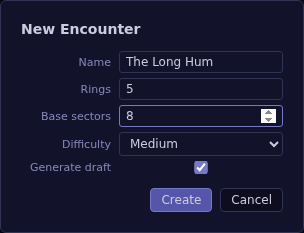
- Click New. Give it a name, leave Generate draft
checked, and click Create. A solver drafts a full maze for you:
walls, a turret line, entries, an energy source, and a hero with a starting team.
You are never starting from an empty grid unless you want to.
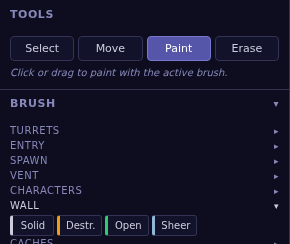
- Pick the Paint tool, choose a wall variant from the
Wall brush group, and drag across an edge in the maze to change
it.
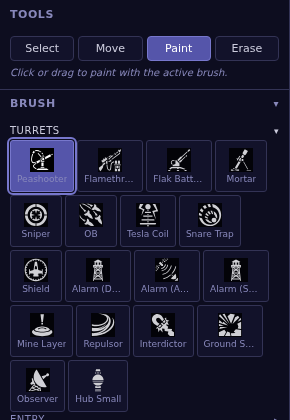
- Choose a turret from the Turrets brush group and click an
empty cell to place it.
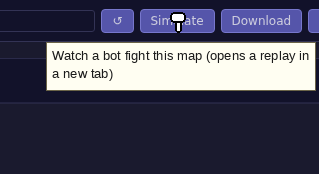
- Click Simulate. A bot plays your map on the seed shown in the
box beside the button, and the replay opens in a new tab. Watch where it wins,
where it stalls, and which of your entries it never touches.
- Back in the editor, click Download to save the map as a JSON
file you can share.
Every field in that first dialog stays editable afterward, in the Level
panel (the top left corner chip on the map, described next).
2. The canvas
A maze is rings and sectors around a hub at the middle: think of it as concentric
roads (rings) cut by spokes (sectors), with the hub as the target at the center and
the corridor as a ring of open ground running around the outside. Your hero and
your teams enter from the corridor, so open entries and spawn points always sit on
the outer wall.
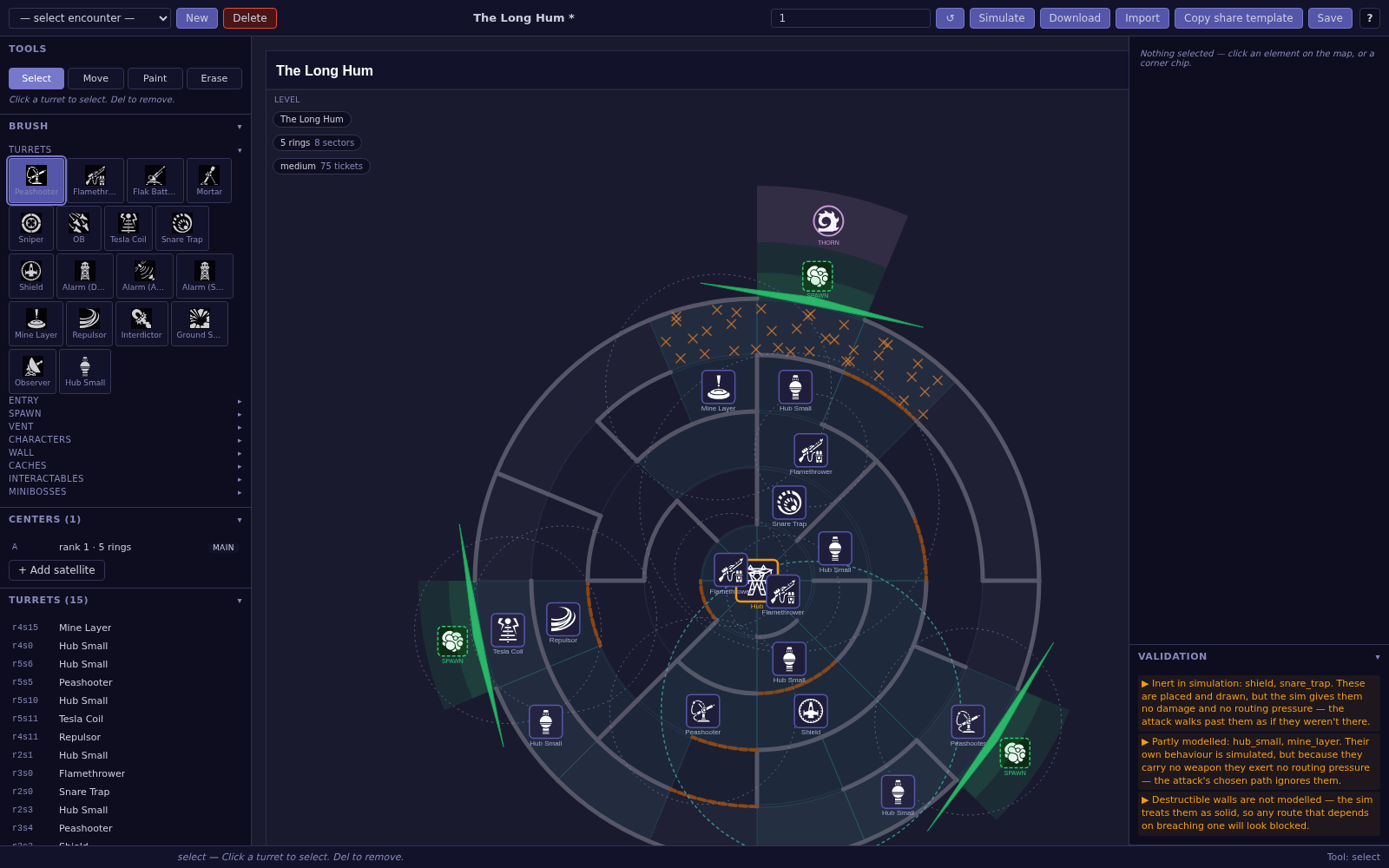 A drafted maze. The Level chip (top left) holds the name and size, a
Heroes chip (top right, off frame here) lists who is fielded, and the sidebar
keeps a live list of every turret, entry, spawn and interactable on the map.
A drafted maze. The Level chip (top left) holds the name and size, a
Heroes chip (top right, off frame here) lists who is fielded, and the sidebar
keeps a live list of every turret, entry, spawn and interactable on the map.
The four chips tucked into the map's own corners are shortcuts into the right-hand
inspector: click one to open what it names (the level's own settings, the roster of
heroes, the alarm call profiles, or the central hub). They scroll with the map, so
on a map bigger than your screen you may need to scroll to reach them, the same as
any other part of the maze.
4. Brushes
The Brush panel groups everything you can paint. Click a group's header to expand
or collapse it, your choice is remembered between visits. Selecting a brush also
switches you to the Paint tool.
Walls
Four states, all reachable from the Wall group: Solid
(blocks everyone), Destructible (breaks under fire), Open
(no wall at all), and Sheer (unclimbable, unvaultable, indestructible,
crossable only by flight).
Entries and the energy source
The Entry group cuts a passage through the outer wall, open or
destructible. The Spawn group marks where your force can enter the
maze from the corridor. The Vent brush places an energy source: a
socket sitting on a maze cell that pays you resources for as long as your side holds
it, until a gateway is planted on it. Take a sector, plant a gateway on its energy
source, and it fields your army for as long as you hold it, leave it uncaptured and
it reverts.
Turrets and characters
The Turrets group is the full roster from the game's own catalog.
The Characters group places a hero into a corridor cell (up to
three per map, more on this in the next section).
Caches and interactables
Five cache types: Tickets (a flat resource refund), Heal
(restores hero HP), Survey (a one-shot fog reveal, pick its target
after placing), Schematic (a carried item wired to one turret, pick
the target after placing), and Memento (a narrative pickup with no
mechanical effect). Three more interactables round out the group: a
Lever (toggles a matched pair of walls, pick the opens edge then the
closes edge after placing), a Door (paint onto a wall edge, opens
only with the matching keycard or breaks under heavy fire), and a
Keycard (a pickup that opens every door and locked cache sharing its
key). Check the Locked box on a cache to require a keycard for it.
Minibosses
Placed Grid mobiles with their own goal, stance and guard radius, set from the
right-hand inspector once placed. They may share a cell with a turret or an
interactable.
5. Heroes and teams
Place up to three heroes, each with up to four teams of creatures. Only the first
two teams you build for the active hero actually fight, the rest wait in reserve and
deploy if that hero falls and a reserve team is needed. Select a hero to open its
panel: pick which two active abilities it carries, then click
+ Add team to build one.
Every team holds up to two creature types, but the design is uni-minion: one
creature type per team is the doctrine the game is tuned around, mixing two into one
team works, but the editor will warn you about it (more in the next section).
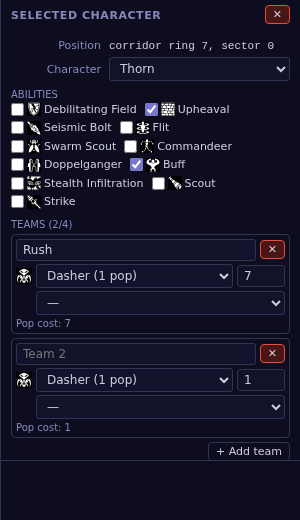 A hero with two teams built, each fielding one creature type. Every
creature costs a different number of resources to field, shown as its pop cost.
A hero with two teams built, each fielding one creature type. Every
creature costs a different number of resources to field, shown as its pop cost.
6. Simulate
Click Simulate and a bot plays your map on the seed shown in the
box beside the button. The same map and the same seed always replay identically,
change the seed (or click the reroll button next to it) to see a different attempt.
The replay opens in a new tab: scrub the timeline, watch the fight unfold on the
same maze you drew, and read the notes underneath explaining where the attack died
and which of your entries it never used.
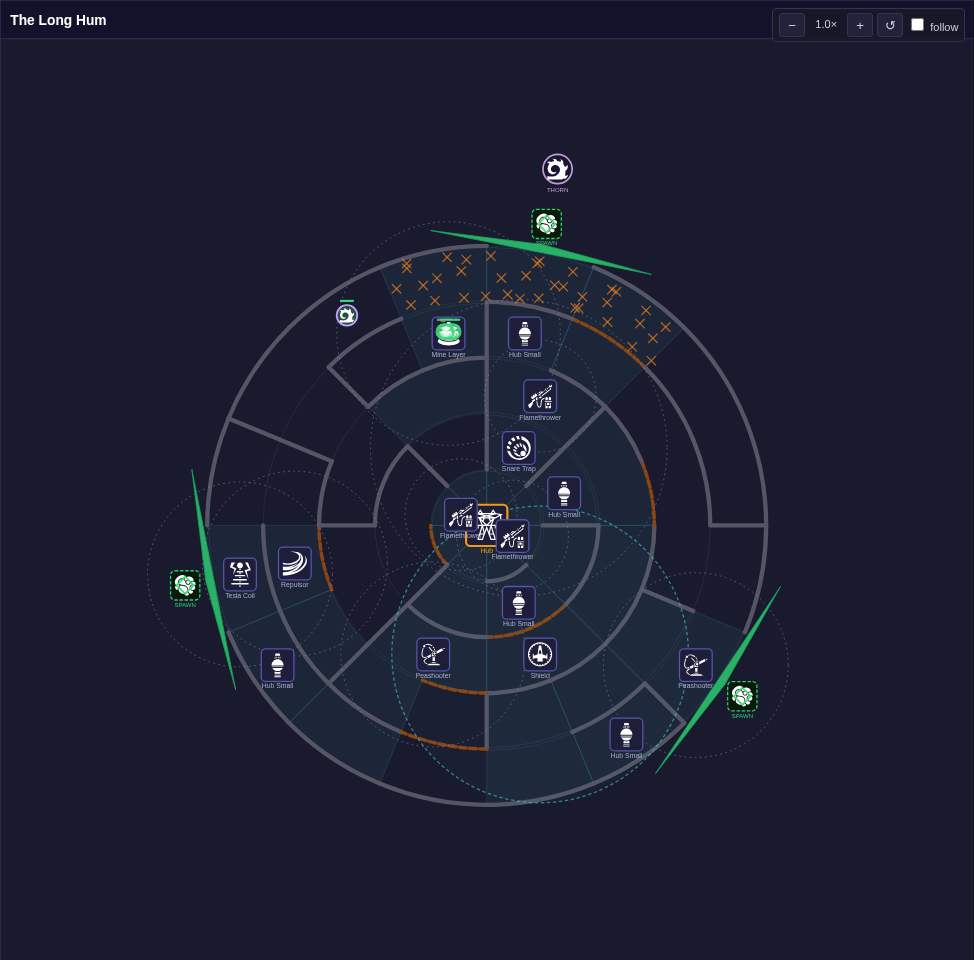 The replay. Zoom, pan, or turn on follow to keep the camera on the
hero as the fight moves through the maze.
The replay. Zoom, pan, or turn on follow to keep the camera on the
hero as the fight moves through the maze.
What the simulator is. A diagnostic, not a verdict. It tells you
where an attack died and what it never touched, cosmetic-looking edits can move
its outcome a long way, so read the replay, not any single number in it.
Not everything you can place is modeled the same way. A few pieces (shields, snare
traps and a handful of others) are drawn but give the attack no resistance at all in
simulation, and destructible walls are treated as solid, so a route that depends on
breaching one can look blocked when it is not. If your map places something the
simulator does not yet know how to fight, it will tell you before the run starts
rather than fail partway through.
7. Validation
The Validation panel is pinned at the bottom right and updates automatically as you
edit, there is no separate button to press. It reports two kinds of finding.
- Errors (marked with a cross) block saving. They mean a hero
could get permanently stuck: a maze with no route to the hub, a keycard that can
never be reached, a locked door with no key placed anywhere.
- Warnings (marked with a triangle) do not block saving. They flag
a placement that will quietly do less than you expect: a team mixing two creature
types, a turret sitting outside every relay's reach, a memento with no text set.
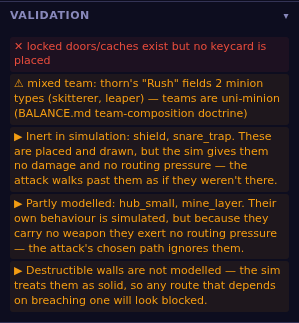 One error (a locked cache with no keycard anywhere on the map) and one
warning (a mixed-type team) on the same map.
One error (a locked cache with no keycard anywhere on the map) and one
warning (a mixed-type team) on the same map.
Click any line that names a cell and the map scrolls to it and flashes, so you do
not have to hunt for what the message is talking about.
What the companion build can play
The editor offers the whole roster. The Windows companion build plays a smaller
part of it, because it ships ahead of the rest of the game. Anything it cannot play
yet is dimmed in the palette and carries a small marker. Hover it and the tooltip
says why: no model built yet, or switched off in this build, or not in that build at
all.
You can still place dimmed pieces. Maps here are authored for the finished game as
well as for today's download, so nothing is taken away from you. What changes is that
the Validation panel adds a third kind of line, marked with a flag, listing what the
companion build would quietly skip if you loaded this map into it. Tick
Workshop Build only at the top of the Brush panel to hide the dimmed
pieces entirely and design against exactly what plays today.
8. Share it
- Download saves the map as a JSON file on your own computer.
Nothing proprietary, open format, readable in any text editor.
- Copy share template writes a ready-to-paste post: the map's
name, its size, whether it has been simulated and on what seed, and its
description. Paste it into a new thread, attach the JSON file and a screenshot of
the layout, and tag it.
Say what the map is trying to teach or test, which team you built it for, and
whether you agree with what the simulator showed you. The most useful posts read
like a note to a playtester, not just an attachment.
9. Beyond the basics
The editor goes considerably further than the loop above. Briefly, so you know it
exists:
- Alarms. Turrets that sweep, call in reinforcements, or sit on an
antenna wired to a call ladder, set from the alarm sub-panel on a capable turret's
inspector.
- Call profiles and escalation. Named packages of reinforcements
(droids, walking bombs, minibosses, bosses, bombardment) and a clock that raises
the pressure over time, both opened from the bottom corner chips.
- The central hub. Its own antenna, a guardian shield, and an
orbital-escape finale, opened from the bottom right corner chip.
- Multiple centers. A main maze with satellite mazes branching off
it, grown from the + Add satellite button under Centers. This is
an author-only feature on the public editor for now, see the note below.
None of this is required to build a map worth sharing. Start with one maze, one
hero, and a turret line, the rest is there when you want it.
Shortcuts
| Key | Does |
|---|
| Ctrl / Cmd + S | Save |
| V M B X | Select, Move,
Paint, Erase |
| 1–9 | Pick the Nth turret type as your brush
and switch to Paint |
| Delete | Remove the selected miniboss, or else the
selected turret |
| Esc | Cancel a pick in progress, or clear the current
selection |
| Tab | Hide both side panels for a full view of the
canvas, press again to bring them back |
Shortcuts are inactive while you are typing into a text field. Holding
Alt while dragging a satellite center places it freely instead of
snapping it to the main maze's angle.
A public instance
At kithlikeus.com/editor, a few things work differently from
an author's own local copy:
- The official maps are read-only, marked with a lock badge in the encounter list.
Editing one and saving does not overwrite it, it forks your own copy instead, and
the Save button relabels itself to say so.
- Official maps cannot be deleted.
- + Add satellite is hidden, and a map with more than one center
cannot be saved. Multiple-center maps are an author-only feature for now.
- Your drafts live in that browser only, named by a cookie that identifies the
browser, not you. Nobody else can see them, and they do not follow you to a
different browser or device.